iOS 26 features: everything new, how to use them, and tips
iOS 26 features: everything new, how to use them, and tips ClubRive …

iOS 26 features: everything new, how to use them, and tips
TL;DR:
- iOS 26 brings a Liquid Glass design across apps and screens.
- Apple Intelligence adds Live Translation and visual intelligence actions.
- Phone gains Call Screening and Hold Assist to save time.
- Messages adds polls, chat backgrounds, and better spam controls.
- Maps, Music, Wallet, and CarPlay see practical upgrades.
iOS 26 is a big update. Apple previewed it on June 9, 2025. Apple says the release brings a new design, smarter tools, and updates to core apps. The update arrives for iPhone 11 and later this fall. Apple Intelligence features need newer devices.
[Related: How to install iOS 26 safely ? /how-to/install-ios-26]
[Related: Best Apple Watch features with watchOS 26 ? /guides/watchos-26]
Quick start: prepare and install
- Check compatibility. iPhone 11 or newer supports iOS 26.
- Back up. Use iCloud or a computer backup before updating.
- Free space. Keep at least 8 GB free for a smooth install.
- Power and Wi-Fi. Plug in and use a stable network.
- Update path. Go to Settings, General, Software Update.
The new look: Liquid Glass
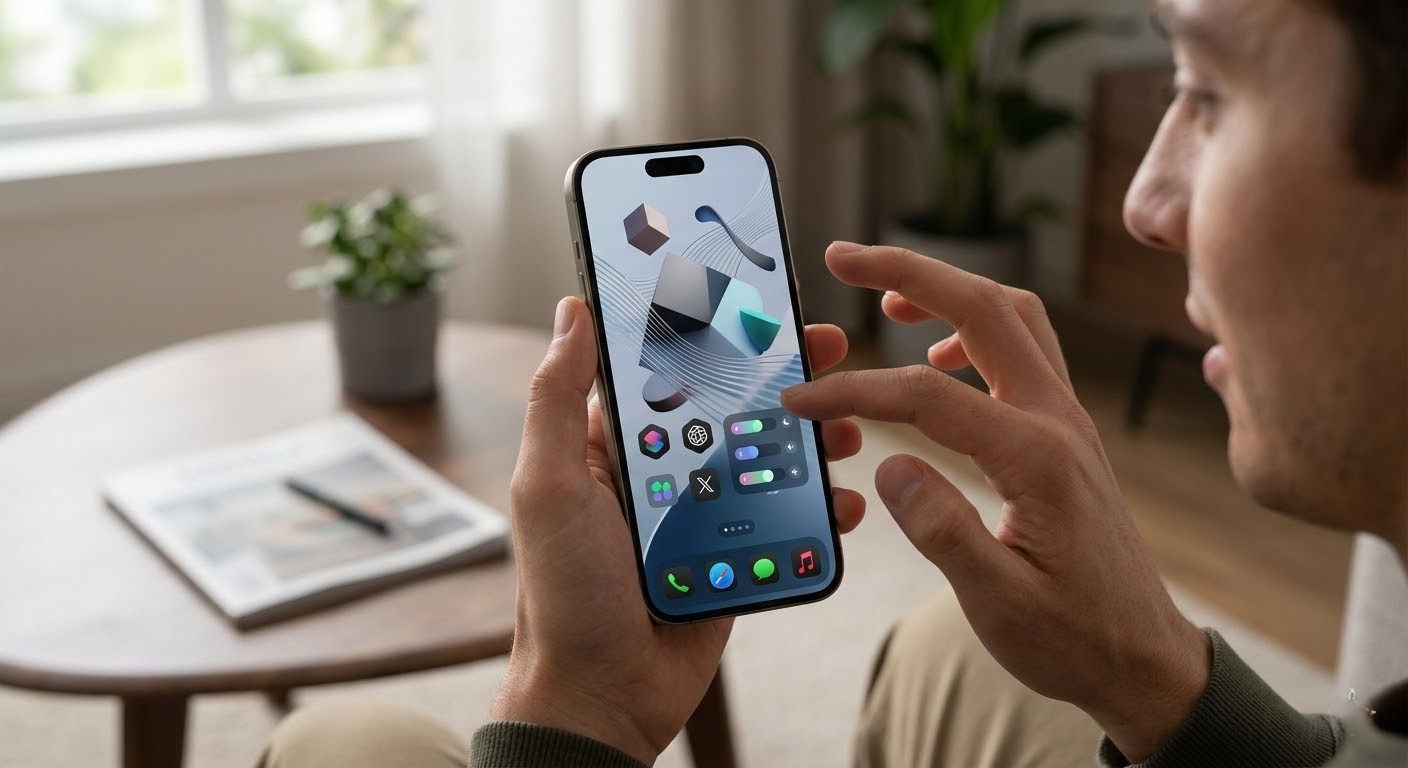
Apple’s new Liquid Glass design reaches the Lock Screen, Home Screen, Control Center, and apps. It uses translucent layers that reflect and refract the background. Controls and toolbars adapt to focus on your content.
You can pick clear icons, tinted colors, and light or dark sets. The Lock Screen time reshapes around your photo. Spatial wallpapers add a subtle 3D effect when you move the phone. Apple says the design language is consistent across iPhone and other Apple platforms.
Try this: Long-press the Home Screen, tap App Icon Appearance, and test the clear icon set. Switch wallpapers and see how controls reflect the colors.
Apple Intelligence upgrades
Apple Intelligence powers several new abilities. Features run on device for privacy, with some tools using Apple’s Private Cloud Compute where needed.
Live Translation
Live Translation works in Messages, FaceTime, and Phone. It translates text and audio during chats and calls. Language support varies by app. You can keep the original text and the translation in the thread.
How to use:
- In Messages, open a conversation, tap the plus button, choose Translate, then pick languages.
- In Phone or FaceTime, look for the translation option during a call.
Visual intelligence on your screen
Visual intelligence lets you act on what you see. Highlight a product in a photo or screenshot to search for it. Ask questions about the on-screen content, add events to Calendar, or open related apps.
Tip: Take a screenshot of a flyer with a date. Visual intelligence can suggest adding it to Calendar with time and location filled in.
Image tools and Shortcuts
Genmoji and Image Playground mix emoji and short prompts to create fun images. Shortcuts gains new intelligent actions like summarizing text, creating images, and piping Apple Intelligence results into your workflows.
Phone and Messages get smarter
Call Screening and Hold Assist
Unknown callers no longer interrupt you. Call Screening asks for the caller’s name and reason, then notifies you so you can decide. Hold Assist waits on hold and alerts you when an agent joins.
Turn on Call Screening: Settings ? Phone ? Call Screening.
Use Hold Assist: When on a call with a queue, tap Hold Assist.
Cleaner inbox and better group chats
Messages adds polls for quick decisions and chat backgrounds for personality. Unknown senders and spam get better filtering, with less noise in your main inbox. Group chats gain clearer typing indicators and smoother Apple Cash flow in supported regions.
Create a poll: In a group chat, tap the plus button, choose Poll, add options, and send.
Set a chat background: Open the chat, tap the title bar, choose Background, then pick a built-in style or a photo.
CarPlay improvements
CarPlay receives a refreshed look that matches iOS 26. You get a compact incoming call view, Tapbacks in Messages, widgets, and Live Activities. CarPlay Ultra, where available, brings a unified layout across vehicle screens and access to car controls.
Tip: Pin key conversations to keep them visible in CarPlay. Use widgets for directions, music, and flights without switching apps.
Maps, Music, and Wallet
Maps
Maps adds Visited Places so you can revisit spots you spent time at. It also learns preferred routes and warns you about delays before you leave.
Privacy note: You control whether Maps remembers visits, and you can clear history anytime.
Apple Music
Music gets Lyrics Translation and Lyrics Pronunciation to help you sing along in another language. AutoMix blends tracks using tempo and key for smooth transitions.
Try this: Turn on AutoMix in the Now Playing menu, then queue a playlist with varied tempos.
Wallet
Wallet uses Apple Intelligence to summarize order tracking details from emails. You see shipping status in one place, even for purchases outside Apple Pay. Some regions also support Digital ID and web age verification using the ID stored in Wallet.
Who can use what
Not every feature is available everywhere. Availability varies by device model and language. Apple lists the details, and the update notes clarify regional support.
At a glance
| Feature | Works on | Notes |
| iOS 26 update | iPhone 11 and later | Free update this fall |
| Apple Intelligence | iPhone 16 models, iPhone 15 Pro, 15 Pro Max | More languages by year end |
| Live Translation in Messages | Supported AI devices | More languages than Phone/FaceTime |
| Live Translation in Phone/FaceTime | Supported AI devices | One-on-one calls only |
| Call Screening, Hold Assist | iPhone 12 and later | Region and carrier support may vary |
| CarPlay upgrades | Car dependent | Widgets and Live Activities supported |
| Visited Places in Maps | iPhone 12 and later | Region support varies |
| Lyrics Translation, AutoMix | Apple Music app | Needs active subscription |
Quick wins after you update
- Switch app icons to the clear set to feel the redesign.
- Add a chat background to your most active group.
- Turn on Call Screening before your workday.
- Try Live Translation with a friend who speaks another language.
- Add a calendar event directly from a screenshot using visual intelligence.
- In Wallet, check Orders to see AI-powered summaries of tracking emails.
Common mistakes and fixes
- Translation not available. Confirm your device supports Apple Intelligence and language is set correctly in Settings.
- Call Screening missing. Update carriers settings and confirm region support.
- Maps does not show visits. Enable location access for Maps and give it time to learn places.
- CarPlay widgets missing. Update your car’s firmware if available and check CarPlay settings.
Why it matters
The new design makes iPhone feel fresh without breaking old habits. Apple Intelligence removes friction in calls, chats, and everyday tasks. Small upgrades in Maps, Music, Wallet, and CarPlay add up. You save minutes every day, which compounds over a year.
Sources:
- Apple, iOS 26 overview, https://www.apple.com/os/ios/, accessed 2025-09-08
- Apple Newsroom, “Apple elevates the iPhone experience with iOS 26,” https://www.apple.com/newsroom/2025/06/apple-elevates-the-iphone-experience-with-ios-26/, June 9, 2025
- MacRumors, “iOS 26: Everything We Know,” https://www.macrumors.com/roundup/ios-26/, updated within 3 days of 2025-09-08