Best tech setup for full-time travel work with secure data
Best tech setup for full-time travel work with secure data ClubRive …
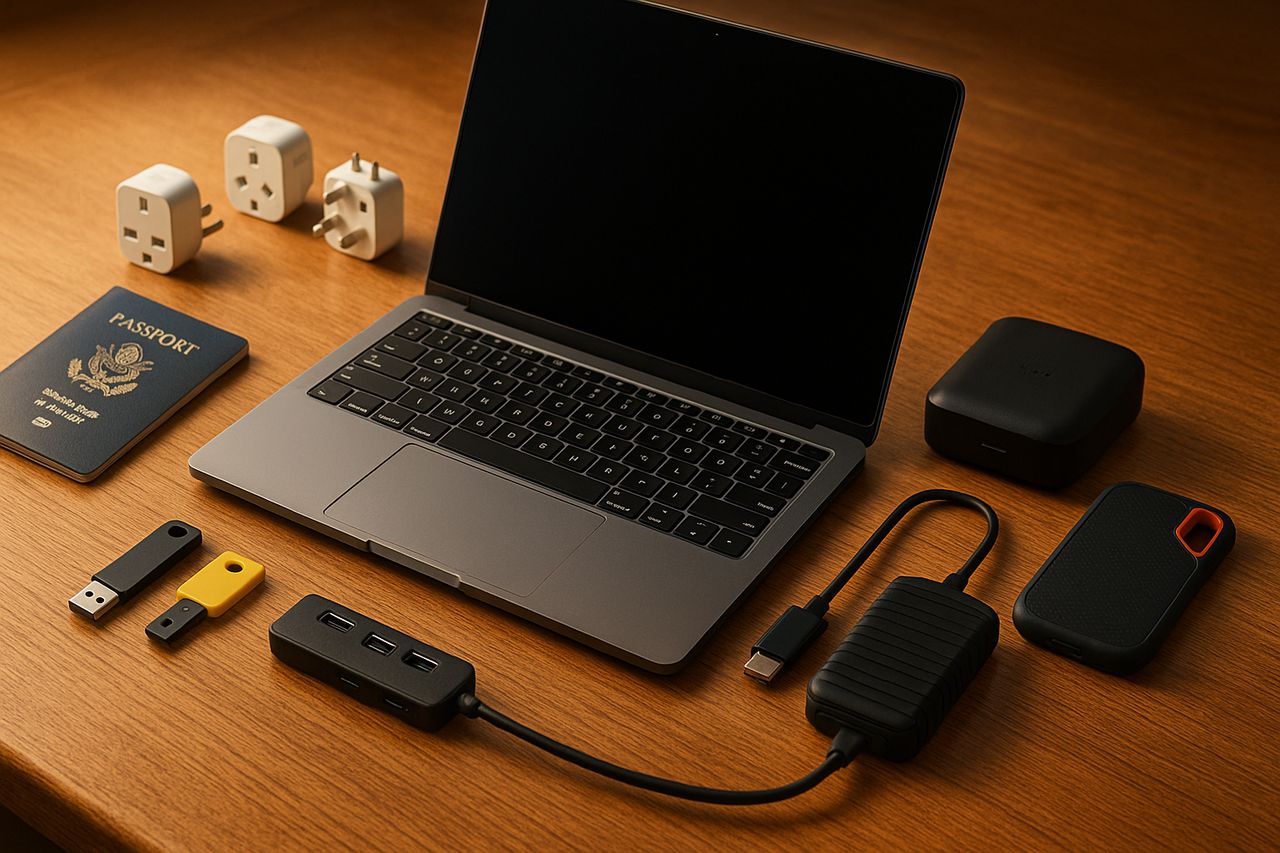
Best tech setup for full-time travel work with secure data
TL;DR:
- Target 20 Mbps down and 5 Mbps up for smooth video calls.
- Use a modern laptop with 16 GB RAM, 512 GB SSD, and hardware encryption on.
- Carry a travel router, eSIM hotspot plan, and a USB-C hub with PD.
- Turn on full-disk encryption, passkeys or security keys, and a password manager.
- Follow the 3-2-1 backup rule with one off-site or cloud copy.
You work from the road. You join video calls, pass large files, and carry sensitive data. You need a portable kit that works in rentals, cafés, and airports. This guide gives a proven setup with gear and settings that hold up worldwide. Today’s date is 19 September 2025.
Internet that does not fail on call
Video platforms list low minimum speeds, but real calls need margin. Zoom’s support page shows 1.2 Mbps up and down for 720p and about 3 Mbps up for 1080p. Many users find 20 Mbps down and 5 Mbps up keeps calls steady when screen sharing and cloud sync run in the background. If others in the home share the link, aim higher.
Your portable network plan
- Primary: Local data eSIM on your phone with hotspot enabled. Buy a city or country plan on arrival.
- Backup: A second eSIM or a physical SIM from a different carrier.
- Tertiary: Lodging Wi-Fi through a travel router you control. Pick a model that creates your own private Wi-Fi and can log in through captive portals.
- Last resort: Work audio-only with slides sent ahead. Keep a phone dial-in number saved for your main conference tools.
Pro tips
- Test uplink at the exact desk location. A 5–10 meter move can double stability.
- On hotel Wi-Fi, put phones and tablets on the travel router, then connect your laptop to the router’s private SSID. This cuts device chatter on shared networks.
- When the upload drops mid-call, kill all sync apps, pause cloud backups, and drop to 720p video.
Laptop and core accessories
Laptop specs that travel well
- 13–14 inches, under 1.4 kg.
- 16 GB RAM minimum for heavy browsers and video tools.
- 512 GB SSD or more for local work sets.
- Wi-Fi 6 or 6E, good thermals, solid 1080p webcam.
Both macOS and Windows have strong native security. Macs ship with hardware encryption and FileVault. Windows 11 supports BitLocker on Pro and many Home devices. Turn these on and store the recovery key safely.
Core accessories
- USB-C hub with 100 W pass-through power and HDMI.
- 65–100 W GaN charger plus a compact 10–20K mAh battery.
- Wired in-ear mic headset as a failover to Bluetooth.
- Travel router that supports WPA3 and captive portal login.
- Two USB-C cables and one long USB-C to USB-C for awkward outlets.
- Privacy filter if you often work in public spaces.
Carry a second screen without weight
- A portable 14–16 inch USB-C monitor helps on spreadsheets and editing.
- If you skip a second screen, use your tablet as a sidecar display.
Camera, audio, and lighting that fit in a pouch
- Audio first. A simple wired headset beats a laptop mic in noisy rooms. Keep one wired and one Bluetooth set.
- Camera. A modern laptop camera is fine for most calls. If you present often, carry a small 1080p USB webcam.
- Light. A clip light or a foldable LED on low power makes you look clear in dim rentals. Place it just above your screen.
Secure setup that survives cafés and airports
Public Wi-Fi is convenient but risky. Consumer security agencies advise strong auth, updates, and caution with public hotspots. Build layers that reduce common threats.
Must-do security basics
- Full-disk encryption on. Use FileVault on macOS or BitLocker on Windows. Store recovery keys in a safe place that you can reach while abroad.
- Phishing-resistant sign-in where possible. Use passkeys or FIDO2 security keys for your single sign-on, email, and password manager.
- Password manager for everything else. Create unique passwords. Turn on 2-step verification for all key services.
- Updates and device lock. Auto-update the OS, browser, and apps. Set a 5–10 minute auto-lock with a strong password or biometric.
- Use your own network first. Prefer your phone hotspot over unknown Wi-Fi for sensitive tasks. If you must use public Wi-Fi, connect your VPN or secure access client as soon as you join.
- Browser hygiene. Separate work and personal profiles. Use a privacy-focused extension list that you keep short to avoid conflicts.
Travel router playbook
- Change the router admin password before your trip.
- Use WPA3 for your private SSID when both ends support it.
- Name the SSID something bland, not “Alice-Work.”
- Disable WPS and remote admin.
- Update firmware in a trusted network before you leave.
When a country restricts VPNs
- Respect local law. Many services support per-app tunnels or corporate zero-trust access that may be allowed when consumer VPNs are not. Check your company policy and the local rules before traveling.
Handling large files without stalls
Smart transfer paths
- Use cloud drive features that selectively sync only active folders to the laptop.
- For very large media, upload from the fastest link you can access. Many coworking spaces offer higher uplink than rentals.
- Stage big uploads overnight. Pause device backups and streaming to free the pipe.
- For teams, set shared export presets and proxy workflows so only final masters travel.
On-the-road storage
- Carry one rugged 2 TB SSD for active projects.
- Carry one second SSD that receives daily backups.
- Keep a small stash of microSDs for hand-offs or camera work.
Backups that recover fast
Follow the classic 3-2-1 idea. Keep three copies, on two types of media, with one off-site. Cloud backup services and object storage make the off-site part easy. Some teams now add an extra immutable copy to resist ransomware.
Daily routine
- Local Time Machine or Windows File History to the first SSD.
- A second local copy with a simple mirror tool.
- A cloud backup that runs when you plug in the fast internet.
- Test a small restore monthly so you know it works.
Data protection if the laptop is lost or seized
- Full-disk encryption blocks offline access to files.
- Device tracking and remote wipe can help, but only when the machine goes online.
- Keep a travel Apple ID or Microsoft account free of personal photos if you prefer to limit exposure at borders.
- Border crossings. Some countries allow device searches. Carry the least data needed, make a clean profile for travel, and store archives in the cloud with strong auth.
App stack that travels light
- Calls: Zoom, Meet, or Teams with bandwidth capped at 720p when links are weak.
- Writing and notes: Cloud docs with offline mode.
- Files: A main cloud drive plus a secondary account in case the main one is down.
- Security: Password manager, authenticator app, and OS-level firewall on.
- Automation: A one-click script or app that flips your “travel mode,” turning off heavy sync, lowering video resolution, and enabling the VPN.
Power and charging
- Carry at least one 65 W GaN charger with two USB-C ports.
- Bring plug adapters for your region list and a spare set.
- Use surge protection when possible. A compact travel surge strip protects chargers and gives extra outlets in old rooms.
- Avoid public USB charge points. Use your own power brick and cable.
A minimal, durable packing list
Core tech
- Laptop with 16 GB RAM, 512 GB SSD
- Phone with dual eSIM and hotspot
- 65–100 W GaN charger, two USB-C cables, one long cable
- USB-C hub with HDMI and SD
- Wired in-ear mic headset, plus Bluetooth earbuds
- Portable LED light or clip light
- Travel router with captive portal support
- 14–16 inch portable monitor, optional
- 2 TB rugged SSD for work, 2 TB SSD for backup
- Small surge protector or travel power strip
- Security key for passkeys and MFA
Security checklist
- FileVault or BitLocker on
- Passkeys or security keys added to key accounts
- Password manager set and synced
- Auto updates on
- VPN or secure access client installed
- Browser profiles split for work and personal
- Backup jobs tested
Example desk setups
Hotel room
- Router by the door or window for stronger signal.
- Laptop on a stand, wired headset, small light above the screen.
- SSD backup runs after the day’s work. Cloud backup runs overnight.
Café
- Hotspot from phone on a high data plan.
- Privacy filter on the screen.
- No large uploads. Work offline where possible. Sync back at the hotel.
Airports
- Use phone hotspot for quick checks.
- If you must use airport Wi-Fi, connect the VPN first and avoid banking or HR portals.
- Keep cables and a small battery in the personal item for gate calls.
Troubleshooting quick wins
- Echo or bad audio: Switch to the wired headset. Mute video to save bandwidth.
- Lag in calls: Cap video to 720p. Pause cloud sync. Move closer to the router.
- Uploads crawl: Zip files, upload overnight, or ship to a teammate with better uplink.
- Laptop hot throttling: Raise the rear on a stand. Kill background tabs.
- Frequent Wi-Fi drops: Set your travel router to 2.4 GHz in crowded buildings.
Why it matters
A simple, layered kit reduces failures and stress. You keep calls clear, ship files on time, and protect client data. Fewer moving parts means fewer surprises when you move from one country to the next.
Sources:
- Zoom Support, “System requirements and bandwidth for meetings,” https://support.zoom.com/hc/en/article?id=zm_kb&sysparm_article=KB0060748 and “Recommended bandwidth for meetings,” https://support.zoom.com/hc/en/article?id=zm_kb&sysparm_article=KB0058323, accessed 19 September 2025
- Apple Support, “Protect data on your Mac with FileVault,” https://support.apple.com/guide/mac-help/protect-data-on-your-mac-with-filevault-mh11785/mac and “How does FileVault work,” https://support.apple.com/guide/mac-help/how-does-filevault-work-on-a-mac-flvlt001/mac, accessed 19 September 2025
- Microsoft Support and Learn, “BitLocker overview,” https://support.microsoft.com/en-us/windows/bitlocker-overview-44c0c61c-989d-4a69-8822-b95cd49b1bbf and “BitLocker for IT pros,” https://learn.microsoft.com/en-us/windows/security/operating-system-security/data-protection/bitlocker/, accessed 19 September 2025
- CISA, “Cybersecurity While Traveling,” https://www.cisa.gov/sites/default/files/publications/Cybersecurity%20While%20Traveling.pdf and “Securing Wireless Networks,” https://www.cisa.gov/news-events/news/securing-wireless-networks, accessed 19 September 2025
- FTC, “Are Public Wi-Fi Networks Safe? What You Need to Know,” https://consumer.ftc.gov/are-public-wi-fi-networks-safe-what-you-need-know and “Public Wi-Fi Networks – Security Tips,” https://www.ftc.gov/media/79888, accessed 19 September 2025
- NIST SP 800-63B, “Digital Identity Guidelines: Authentication and Lifecycle Management,” https://pages.nist.gov/800-63-4/sp800-63b.html, accessed 19 September 2025
- FIDO Alliance, “Passkeys: Passwordless Authentication,” https://fidoalliance.org/passkeys/ and “Passkey Implementation Overview,” https://fidoalliance.org/implement-passkeys-overview/, accessed 19 September 2025
- Backblaze, “The 3-2-1 Backup Strategy,” https://www.backblaze.com/blog/the-3-2-1-backup-strategy/, accessed 19 September 2025; Seagate, “What is a 3-2-1 backup strategy,” https://www.seagate.com/blog/what-is-a-3-2-1-backup-strategy/, accessed 19 September 2025; Veeam, “3-2-1-1-0 rule,” https://www.veeam.com/blog/321-backup-rule.html, accessed 19 September 2025


